
Home › Setup Guides › How to Set Up IPTV on Perfect Player for Computer
How to Set Up IPTV on Perfect Player for Computer
Perfect Player is one of the most popular free IPTV player apps available, simulating the experience of a real IPTV set-top box directly on your computer, tablet, or smartphone. With over 4,400 monthly searches for setup Perfect Player, it’s clear that users across Windows, Linux, and Android are actively looking for a reliable, lightweight M3U player for their IPTV streaming needs.
This guide covers everything you need to know: how to install Perfect Player on PC (Windows and Linux), add your M3U playlist, configure EPG, and make the most of its key features.
Note: Perfect Player does not include IPTV channels by default. You must supply your own M3U playlist URL from your IPTV provider to start streaming.
Why Choose Perfect Player for IPTV on PC?
Perfect Player is considered one of the best IPTV player for Windows options due to:
- Free to use with no subscription required (beyond your IPTV service)
- Full M3U playlist and M3U file support
- IPTV EPG integration via XMLTV and JTV formats
- Works as an STB emulator — simulates a set-top box interface on PC
- Highly customizable Perfect Player settings (aspect ratio, subtitles, audio)
- Available on Windows, Linux, and Android
For users looking for IPTV for PC without the complexity of Kodi or the cost of TiviMate for Windows, Perfect Player hits the sweet spot.
How to Install Perfect Player on PC (Windows & Linux)
- Visit the official Perfect Player website and download the Windows EXE or Linux package.
- Run the installer and follow the on-screen setup wizard.
- Launch Perfect Player — you’ll see the main interface with no channels loaded yet.
Mac users: Perfect Player is not officially supported on macOS. However, you can use an Android emulator (such as BlueStacks) to run the Android version of Perfect Player on a Mac. This is currently the most reliable method for IPTV Mac users who specifically want Perfect Player.
How to Add IPTV Channels to Perfect Player on PC
Step 1 – Open Perfect Player Settings
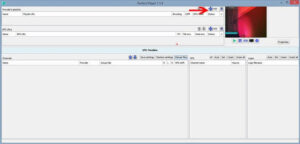
Launch the app and click the gear icon (⚙️) or find the “Add Playlist” button on the main interface.
Step 2 – Enter Your M3U Playlist URL
In the Perfect Player settings, navigate to General → Playlist and paste the M3U playlist URL provided by your IPTV provider into the designated field. Click OK to save.
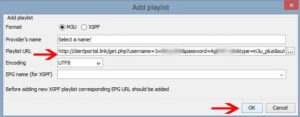
Most IPTV providers include an M3U URL in your account dashboard. Always use the URL rather than a downloaded static M3U file — the URL ensures your channel list updates automatically.
Step 3 – Load the Channel List
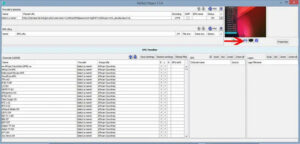
Click the blue channel list button (indicated by the on-screen arrow after first load) to bring up your full channel list from the M3U playlist.
Step 4 – Start Streaming
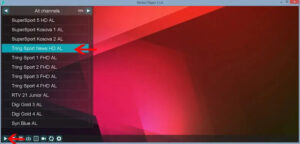
Select any channel from the list and click Play to begin IPTV streaming on your PC. That’s it — your Perfect Player IPTV setup is complete.
How to Add EPG to Perfect Player on PC
- Open Perfect Player settings → tap the gear icon → go to General.
- Locate the “EPG URL or file path” field.
- Enter the EPG URL (XMLTV format) provided by your IPTV provider.
- To add multiple EPG sources, separate each URL with a comma.
- Click OK, restart the app, and your IPTV EPG guide will load alongside your channels.
How to Switch Between Playlists in Perfect Player
If you have multiple IPTV subscriptions or M3U sources:
- Go to Perfect Player settings → General → Playlists.
- Add all your M3U playlist URLs in this section.
- Toggle between playlists from the main interface via the playlist menu.
This makes Perfect Player a great M3U player for users managing multiple providers or channel packages.
Perfect Player vs Other IPTV Players for Windows
| App | Windows | Linux | Mac | Xtream Codes | EPG | Free |
|---|---|---|---|---|---|---|
| Perfect Player | ✅ | ✅ | ❌ (emulator) | ❌ | ✅ | ✅ |
| TiviMate for Windows | ✅ | ❌ | ❌ | ✅ | ✅ | Freemium |
| IPTV Smarters Pro PC | ✅ | ❌ | ✅ | ✅ | ✅ | ✅ |
| VLC IPTV | ✅ | ✅ | ✅ | ❌ | ❌ | ✅ |
| Kodi | ✅ | ✅ | ✅ | ✅ (add-on) | ✅ | ✅ |
Perfect Player is the best IPTV player for Windows if you want a free, STB-style interface with EPG — without needing Xtream Codes. For Xtream Codes support on Windows, IPTV Smarters Pro for Windows or TiviMate Windows 11 are better suited.
FAQs
1. Is Perfect Player available for Windows?
Yes — Perfect Player is fully compatible with Windows (and Linux). It’s one of the best IPTV player Windows options for users who want a free, lightweight M3U player with EPG support and an STB-style interface.
2. Can I use Perfect Player on Mac?
Perfect Player is not officially supported on macOS. The workaround is to use an Android emulator like BlueStacks to run the Android version. For native Mac IPTV, IPTV Smarters Pro PC (DMG version) or VLC IPTV are better alternatives.
3. Where do I get an M3U playlist for Perfect Player?
Your M3U playlist URL is provided by your IPTV provider — usually in your account dashboard or welcome email. Perfect Player doesn’t include any channels by default; you must supply your own playlist.
4. Does Perfect Player support Xtream Codes on PC?
No — Perfect Player on PC uses M3U playlists and XMLTV EPG only. It doesn’t natively support Xtream Codes API login. For Xtream Codes on Windows, use IPTV Smarters Pro for Windows or TiviMate for Windows instead.
5. What is the best free IPTV player for Windows PC?
Perfect Player and VLC IPTV are the top free options. Perfect Player offers a more TV-like STB interface with EPG; VLC is simpler and better for quick M3U playlist playback without a guide. For a premium free experience with Xtream Codes, IPTV Smarters Pro PC is the best choice.
6. Can I use multiple M3U playlists in Perfect Player?
Yes — go to Perfect Player settings → Playlists and add multiple M3U URLs. You can switch between them from the main interface, making it ideal for users with multiple IPTV subscriptions.
7. How do I add EPG to Perfect Player on PC?
In Perfect Player settings → General, find the EPG URL field and paste your provider’s XMLTV EPG link. Separate multiple URLs with commas. Restart the app to load the guide data.
8. Is Perfect Player free?
The core Perfect Player app is free. Some advanced features may require a one-time premium unlock — but for standard M3U playlist streaming with EPG, the free version covers everything most users need.
9. Does Perfect Player work without internet?
No — an active internet connection is required for IPTV streaming via Perfect Player. The app streams content live from your IPTV provider’s servers, which requires a stable connection at all times.
10. What is the difference between Perfect Player and STB Emulator?
Both simulate a set-top box experience. STB Emulator (also known as STBEmu) is designed specifically to emulate MAG box portals, connecting via a portal URL like a physical MAG device. Perfect Player uses M3U playlists and XMLTV EPG — making it more flexible for users with standard M3U subscriptions rather than portal-based ones.
Conclusion
Setup Perfect Player on your Windows PC or Linux machine is one of the easiest ways to enjoy IPTV streaming on a computer. With full M3U playlist support, XMLTV EPG integration, and a clean STB-style interface, it’s the best IPTV player for Windows for users who want a free, no-frills solution. Just add your M3U URL, configure your EPG URL in the settings, and start streaming in minutes.
Ready to start watching?
Try ArenaIPTV free for 24 hours, or pick the plan that fits your household.
Start Free TrialSee Plans